
Cold email is a powerful outreach strategy for connecting with potential clients, partners, or prospects. However, sending emails at the wrong time or in the wrong way can cause them to land in the spam folder instead of the inbox.
Scheduling cold emails helps solve this problem. It allows you to send emails automatically at specific times, making it easier to manage campaigns and reach recipients when they are more likely to check their inbox.
That said, scheduling alone does not guarantee good cold email deliverability. Factors like sender reputation, sending behavior, and email authentication also influence whether your emails reach the inbox.
In this guide, you will learn how to schedule cold emails without landing in spam, along with best practices for timing, sending limits, and campaign management to improve inbox placement and engagement.
What Does Scheduling Cold Emails Mean?
Scheduling cold emails means setting emails to be sent automatically at a specific date and time instead of sending them manually. Many email clients and outreach tools offer this feature, allowing users to plan their emails in advance.
This helps manage cold email campaigns, send messages at optimal times, and reach prospects in different time zones. Scheduling is also commonly used for follow-up sequences and automated outreach, making campaigns more organized and consistent.
Why Scheduled Cold Emails Often Land in Spam
Even with scheduling, cold emails can end up in the spam folder if certain best practices are ignored. Spam filters evaluate emails based on sending patterns, sender reputation, and authentication, so understanding these factors is crucial for deliverability.
1. Bulk Sending Patterns
Sending too many emails at once or at perfectly timed intervals can trigger spam filters. Emails that look automated or robotic are more likely to be flagged.
2. Poor Sender Reputation
A low domain or email reputation caused by previous spam complaints or low engagement reduces the chances of inbox placement, even for well-written emails.
3. Missing Email Authentication
Without proper SPF, DKIM, and DMARC records, email servers cannot verify that your messages are legitimate, making them more likely to be marked as spam.
4. Lack of Domain Warm-Up
New email domains that suddenly send large volumes of emails are often flagged. Gradually increasing your sending volume helps build trust with spam filters.
By addressing these issues, you can improve cold email deliverability and reduce the risk of emails landing in spam.
How to Schedule Cold Emails That Actually Reach the Inbox
Follow these steps to ensure your cold emails reach the inbox safely:
Step 1: Warm-Up Your Email Domain: Start with a low sending volume (5 – 10 emails/day) and gradually increase to build sender reputation.
Step 2: Schedule Emails at Human-Like Intervals: Avoid bulk sending or identical intervals. Randomize sending times to mimic natural human behavior.
Step 3: Choose High-Engagement Hours: Send emails when recipients are most active: Tuesday to Thursday, 8:30 – 10:30 AM.
Step 4: Consider the Recipient’s Time Zone: Send emails according to their local time for higher open rates and engagement.
Step 5: Limit Daily Sending Volume: Stick to safe ranges (10 – 20 emails per mailbox/day) and scale gradually as your domain reputation improves.
Step 6: Personalize Each Email: Use the recipient’s name, company, and context to improve replies and reduce spam signals.
Step 7: Keep Emails Short and Clear: Aim for 25 – 125 words for first contact. Concise emails look human and improve reply rates.
Step 8: Add Follow-Ups Strategically: Send follow-ups 2 – 3 days after the initial email. Personalize each one to maintain engagement.
Common Mistakes When Scheduling Cold Emails
Avoiding these mistakes will help protect your sender reputation and improve inbox placement:
- Sending too many emails at once – bulk sending triggers spam filters.
- Ignoring time zones – emails sent at the wrong time lower open rates.
- Using identical templates – generic messages increase spam risk.
- Skipping domain warm-up – new domains need gradual sending to build trust.
- Sending at identical intervals – predictable patterns look automated.
- Using spam-triggering language – words like “free,” “urgent,” or excessive exclamation marks can flag filters.
By steering clear of these errors, your cold emails are more likely to reach the inbox and generate replies.
How to Schedule Cold Emails in Gmail
- Open Gmail and compose a new email.
- Click the arrow next to the “Send” button.
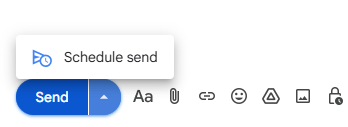
- Select “Schedule send”.
- Choose a suggested time or set a custom date and time.
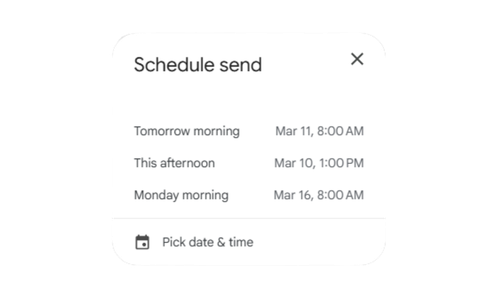
- Click “Schedule send” to confirm.
Tips for Gmail scheduling:
- Use Gmail’s built-in scheduling for small daily volumes.
- Pair with follow-up reminders manually or via add-ons for sequences.
- Combine with domain warm-up and personalization for better cold email deliverability.
How to Schedule Cold Emails in Outlook
- Open Outlook and compose a new message.
- Click the arrow next to the “Send” button.
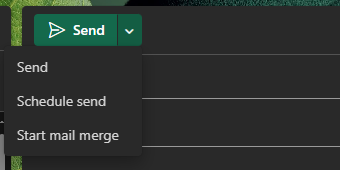
- Click “Schedule Send”.
- Under “Schedule Send,” set the desired date and time.
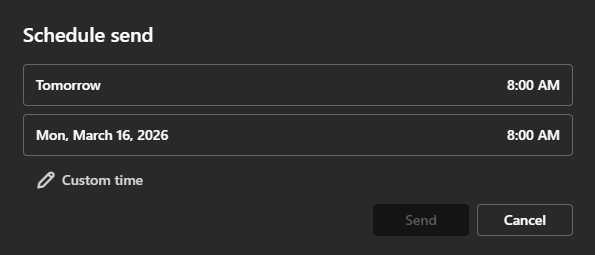
- Select time and then Send; Outlook will send the email at the scheduled time.
Tips for Outlook scheduling:
- Ideal for scheduling emails during high-engagement hours.
- Can be combined with follow-up tasks for structured campaigns.
- Ensure your domain is properly warmed up to maintain sender reputation.
Pros and Cons of Scheduling Cold Emails
Pros
- Better Timing: Schedule emails for high-engagement hours or the recipient’s time zone to increase open rates.
- Consistency: Automates follow-ups and sequences, keeping your outreach organized.
- Time-Saving: Lets you plan campaigns in advance instead of sending emails manually.
- Improved Deliverability: When combined with warm-up and human-like intervals, scheduled emails are less likely to trigger spam filters.
Cons
- Risk of Spam: Poorly scheduled emails or large volumes can still land in the spam folder.
- Less Flexibility: Scheduled emails may not adapt to sudden changes or urgent updates.
- Impersonal Feel: Without proper personalization, automated emails can seem robotic.
- Overreliance on Tools: Relying solely on scheduling software without monitoring performance can hurt engagement.
Conclusion
Properly scheduling cold emails is essential for ensuring they reach the inbox and get responses.
Success isn’t just about picking a send time, it also depends on building a strong sender reputation through domain warm-up, sending emails at human-like intervals, and limiting daily volumes.
Timing your emails for high-engagement hours and adjusting for the recipient’s time zone further improves cold email deliverability. Finally, personalizing each message makes your outreach feel genuine and reduces the chance of landing in spam.
By following these best practices, your cold emails are more likely to achieve better inbox placement, higher engagement, and meaningful responses.
People Also Ask
1. Do scheduled emails affect deliverability or spam filters?
No, scheduled emails don’t harm deliverability as long as your content and sending habits are healthy. Spam filters check message quality, frequency, and engagement not whether an email was sent instantly or scheduled.
Just make sure your domain is warmed up, avoid spammy words, and keep volume consistent.
2. How can I track replies from scheduled outreach emails?
You can track replies using:
- Manual tracking: Monitor your Sent or Scheduled folders and label replies in Gmail or Outlook.
- Tool-based tracking: Use GMass, Lemlist, or Instantly.ai to track opens, clicks, and replies automatically.
- CRM integrations: Connect Gmail or Outlook with HubSpot or Pipedrive for real-time reply insights.
3. Do I need to keep my system on for scheduled emails to send automatically?
It depends on your platform:
- Gmail, Outlook 365, or web-based email → No, they send automatically via cloud servers even if your system is off.
- Desktop Outlook app (offline mode) → Yes, your computer must stay on and connected to the internet until the email is sent.